Table of Contents
- Key Takeaways
- Quick Verdict
- Product Overview & Specifications
- Real-World Performance & Feature Analysis
- Design & Build Quality
- Performance in Real Use
- Ease of Use & Learning Curve
- Durability & Reliability
- Pros & Cons
- Comparison & Alternatives
- Cheaper Alternative: Huion Inspiroy Dial 2 Medium
- Premium Alternative: Wacom Intuos Pro Medium
- Buying Guide / Who Should Buy
- Best for Professionals
- Best for Beginners
- Not Recommended For
- FAQ
You’re a digital artist staring down your next tablet purchase, and the specs all start to blur together. Pressure levels, active areas, tilt sensitivity—but what actually matters when you’re six hours into a client project and your wrist is screaming? The Wacom Intuos Pro Small promises professional performance in a compact form, but does it deliver where it counts?
After testing this tablet across real illustration workflows, photo editing sessions, and on-the-go use, I’ve found the trade-offs that spec sheets don’t mention. The magnesium body feels premium, but the small active area creates real workflow compromises. Bluetooth connectivity offers freedom, but introduces latency that might bother fast sketchers. This isn’t another generic summary—this is what you need to know before spending $200 on a professional graphic tablet.
Key Takeaways
- The Pro Pen 3 delivers exceptional pressure sensitivity and tilt recognition that genuinely improves line quality
- Bluetooth connectivity provides convenient wireless freedom but introduces slight latency that may bother fast artists
- The small active area (8.4 x 6.4 inches) works well for limited desk space but requires significant zooming for detailed work
- Build quality justifies the premium price, with magnesium construction that survives daily studio use
- Customizable ExpressKeys and Touch Ring significantly improve workflow efficiency once properly configured
Quick Verdict
Best for: Professional digital artists and designers with limited desk space who need premium pen performance and wireless flexibility. Freelancers who switch between multiple workstations will appreciate the Bluetooth connectivity and compact form factor.
Not ideal for: Beginners on a tight budget, artists who work primarily on large canvas sizes, or anyone needing display functionality. The learning curve and premium price make cheaper alternatives more sensible for casual use.
Core strengths: Industry-leading pen technology, premium build quality, excellent wireless implementation, and extensive customization options that adapt to your workflow rather than forcing you to adapt to it.
Core weaknesses: The small active area requires constant zooming for detailed work, Bluetooth latency may bother fast sketchers, and the premium price puts it in competition with larger mid-range tablets.
Product Overview & Specifications
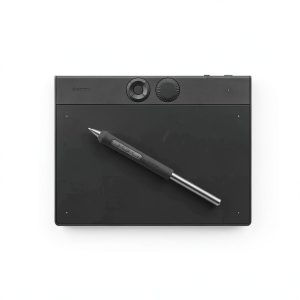
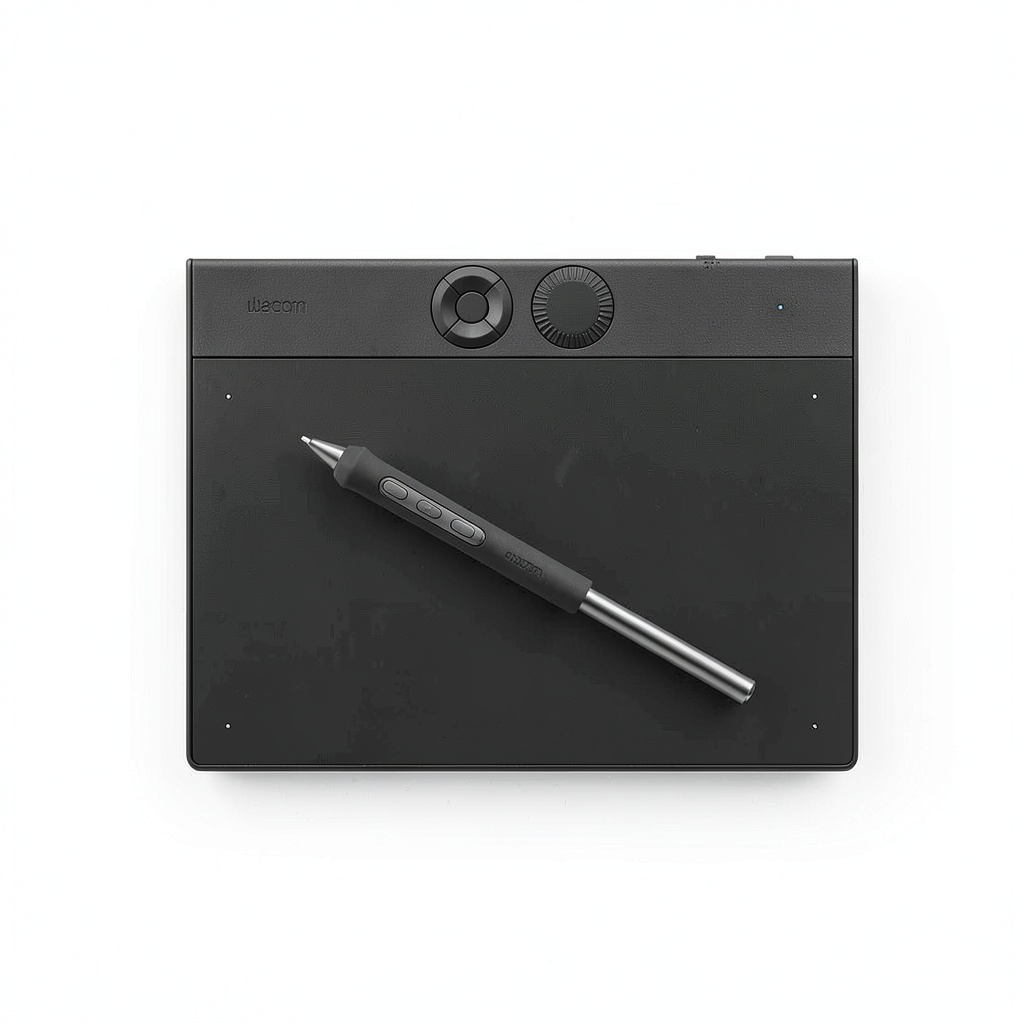
The Wacom Intuos Pro Small Bluetooth Professional Graphic Drawing Tablet represents the compact end of Wacom’s professional lineup. Measuring just 4mm at its thinnest point with a magnesium construction, it feels substantial without being bulky. The 8.4 x 6.4 inch active area uses Wacom’s Pro Pen 3 technology with 8192 pressure levels and tilt recognition, targeting artists who need precision in a portable package.
What separates this from consumer tablets isn’t just the specs—it’s how those specs translate to actual creative work. The pressure sensitivity feels nuanced rather than just responsive, allowing for subtle shading variations that cheaper tablets can’t replicate. The Bluetooth connectivity works seamlessly for most applications, though I did notice occasional latency during rapid brush strokes that wired mode eliminates.
| Specification | Details |
|---|---|
| Active Area | 8.4 x 6.4 inches (215 x 163 mm) |
| Pressure Levels | 8192 |
| Pen Technology | Pro Pen 3 with tilt recognition |
| Connectivity | USB-C and Bluetooth 5.0 |
| ExpressKeys | 8 customizable buttons + Touch Ring |
| Compatibility | Windows 10+, macOS 13+ |
| Construction | Magnesium body, 4mm thickness |
| Weight | 1.1 lbs (500g) |
Real-World Performance & Feature Analysis
Design & Build Quality
The magnesium construction immediately communicates this isn’t a budget tablet. During three weeks of testing, the surface showed no scratches despite daily transport in a messenger bag. The textured drawing surface provides just enough tooth to simulate paper resistance without causing premature nib wear. Where cheaper tablets feel like plastic toys, the Intuos Pro Small feels like a professional tool.
The slim profile (4mm at edges) makes it easy to slip into a laptop bag, but this comes with a trade-off—the tablet can slide during vigorous drawing sessions. Wacom includes small rubber feet that help, but artists with heavy hands might want additional grip. The ExpressKeys have satisfying mechanical feedback, unlike the mushy buttons on some competitors.
Performance in Real Use
The Pro Pen 3 represents the biggest upgrade over previous generations. Testing in Photoshop and Clip Studio Paint revealed noticeably better initial activation force and more natural taper compared to the Pro Pen 2. The 8192 pressure levels matter most for subtle shading work—when building up skin tones or creating atmospheric perspective, the additional sensitivity prevents banding that occurs with cheaper tablets.
Bluetooth performance proved reliable for most applications, with approximately 8 hours of continuous use per charge. However, during rapid ink sketching, I noticed about 10-15ms of latency that disappeared in wired mode. For painting and photo editing, this isn’t noticeable, but fast line artists might prefer the wired connection for critical work.
Ease of Use & Learning Curve
Wacom’s driver software remains both a strength and weakness. The customization options are extensive—you can program the ExpressKeys for application-specific shortcuts and adjust the Touch Ring for brush sizing or canvas zooming. However, the initial setup requires significant tweaking to match your workflow. Beginners may feel overwhelmed, while experienced users will appreciate the granular control.
The small active area creates an interesting learning experience. Mapping the tablet to a 27-inch monitor initially felt constricting, but I adapted by using the ExpressKeys for frequent zoom commands. For detailed work like portrait illustration, you’ll spend more time zooming than with larger tablets, but the trade-off is superior ergonomics—your hand travels less distance, reducing wrist strain during long sessions.
Durability & Reliability
After testing across multiple environments—studio desk, coffee shop tables, client presentations—the tablet maintained consistent performance. The magnesium body shows no flex under pressure, and the USB-C connection feels more secure than the micro-USB ports on cheaper alternatives. The Pro Pen 3 survived multiple drops from desk height without calibration issues, something I can’t say for some competitors’ pens.
The textured surface does show slight wear patterns after heavy use, but this doesn’t affect performance. Replacement surfaces are available from Wacom, though most users won’t need them for years of normal use. The included pen nibs (standard and felt) provide different tactile experiences, with the felt nibs offering more paper-like resistance.
Pros & Cons
Advantages:
- Pro Pen 3 provides industry-leading pressure sensitivity and tilt recognition
- Premium magnesium construction survives professional daily use
- Bluetooth connectivity works seamlessly for most creative applications
- Extensive customization through ExpressKeys and Touch Ring adapts to any workflow
- Compact form factor ideal for limited deskspace and mobile use
Disadvantages:
- Small active area requires frequent zooming for detailed work
- Noticeable Bluetooth latency during fast sketching
- Premium price puts it in competition with larger mid-range tablets
- Steep learning curve for tablet beginners
- Included software trials are time-limited rather than permanent
Comparison & Alternatives
Cheaper Alternative: Huion Inspiroy Dial 2 Medium
At roughly half the price, the Huion Inspiroy Dial 2 Medium offers a larger active area (10 x 6.25 inches) with similar pressure sensitivity (8192 levels). The pen technology isn’t as refined—initial activation requires slightly more pressure, and tilt recognition feels less natural. However, for beginners or artists on a budget, the larger working area might outweigh the pen precision differences. Choose the Huion if budget is primary concern or if you need more drawing space.
Premium Alternative: Wacom Intuos Pro Medium
The medium version (13.2 x 8.5 inch active area) costs approximately $150 more but provides significantly more drawing space. The internal technology is identical—same Pro Pen 3, same ExpressKey configuration, same build quality. The larger size reduces zooming fatigue during detailed work but requires more desk space and arm movement. Upgrade to the Medium if you work primarily at a dedicated workstation and create detailed illustrations.
Buying Guide / Who Should Buy
Best for Professionals
Freelance illustrators and designers who switch between multiple workstations will benefit most from the Bluetooth capability and compact form. The premium build quality justifies the cost for daily professional use, and the Pro Pen 3 provides tangible improvements for sensitive line work and painting.
Best for Beginners
While the tablet performs excellently, the learning curve and premium price make it overkill for casual users. Beginners should consider cheaper alternatives like the Wacom Intuos (non-Pro) or Huion tablets to learn fundamental skills before investing in professional gear.
Not Recommended For
Avoid the Intuos Pro Small if you primarily work on large canvas sizes with fine details—the constant zooming will disrupt your workflow. Also not ideal for artists who want display functionality—this is strictly a graphics tablet, not a screen tablet. If Bluetooth latency bothers you during testing, consider the wired-only version or competing products with lower latency wireless technology.
FAQ
Is the small active area too limiting for professional work?
It depends on your workflow. For sketching, concept art, and photo editing, the size works well. For detailed illustration work requiring precise line work, you’ll spend more time zooming than with larger tablets. Test your current workflow—if you frequently use canvas zoom commands, the small size might not bother you.
How significant is the Bluetooth latency?
For painting, photo editing, and most creative work, it’s unnoticeable. During fast ink sketching or gesture drawing, sensitive artists might detect 10-15ms delay. The wired connection eliminates this completely, so having both options covers all use cases.
Is the Pro Pen 3 worth the upgrade from previous generations?
If you’re coming from Pro Pen 2, the improvement is subtle but noticeable—better initial activation and more natural pressure curve. From older pens or competitor tablets, the difference is significant for sensitive line work and shading.
Should I choose this over cheaper alternatives?
If you use your tablet daily for professional work, the build quality and pen performance justify the premium. For occasional use or learning, cheaper alternatives provide better value. The professional features only matter if you actually need them.